
Supported proxy types
| Option | Description |
|---|---|
| No Proxy (Local Network) | Direct connection through this computer’s current network exit. |
| HTTP / HTTPS | Supports username and password authentication. |
| SOCKS5 | Supports username and password authentication. |
- Hosts can be IPv4 or IPv6 addresses or domain names; ports 1–65535.
- All non-direct proxies first go through a relay that Prism starts on 127.0.0.1 on your computer. The relay adds the credentials and forwards traffic to the upstream proxy, so the proxy username and password never appear on the browser command line.
- Proxy passwords are encrypted with the system’s secure storage (macOS Keychain / Windows DPAPI) when available; the interface only shows “Saved” and never displays the password.
- SOCKS4 is not supported, and there is no proxy API extraction or automatic rotation; bring your own proxies.
Connection test: exit IP, location and risk
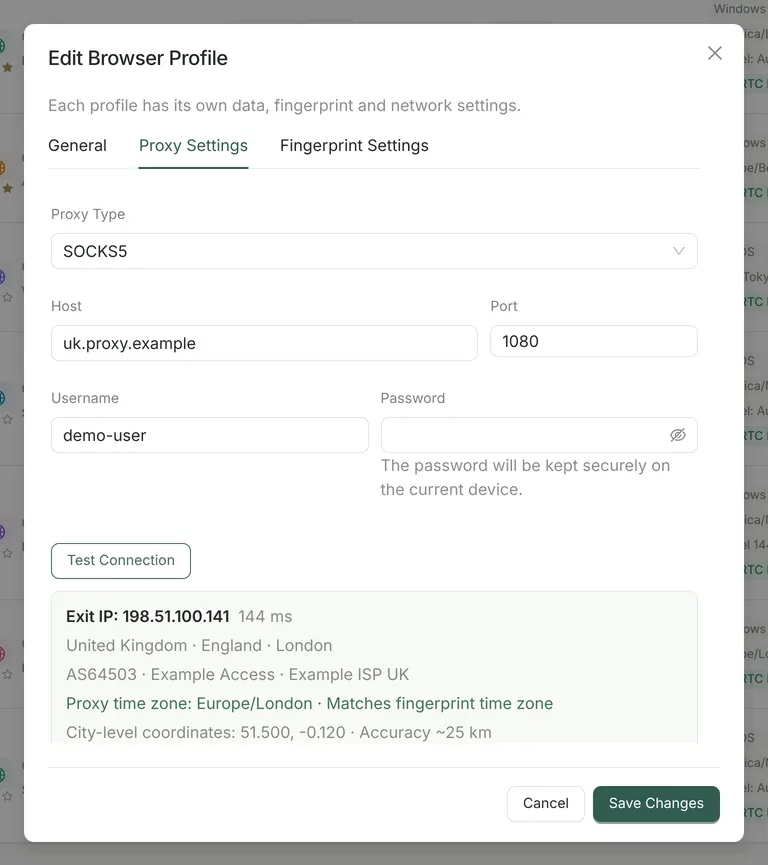
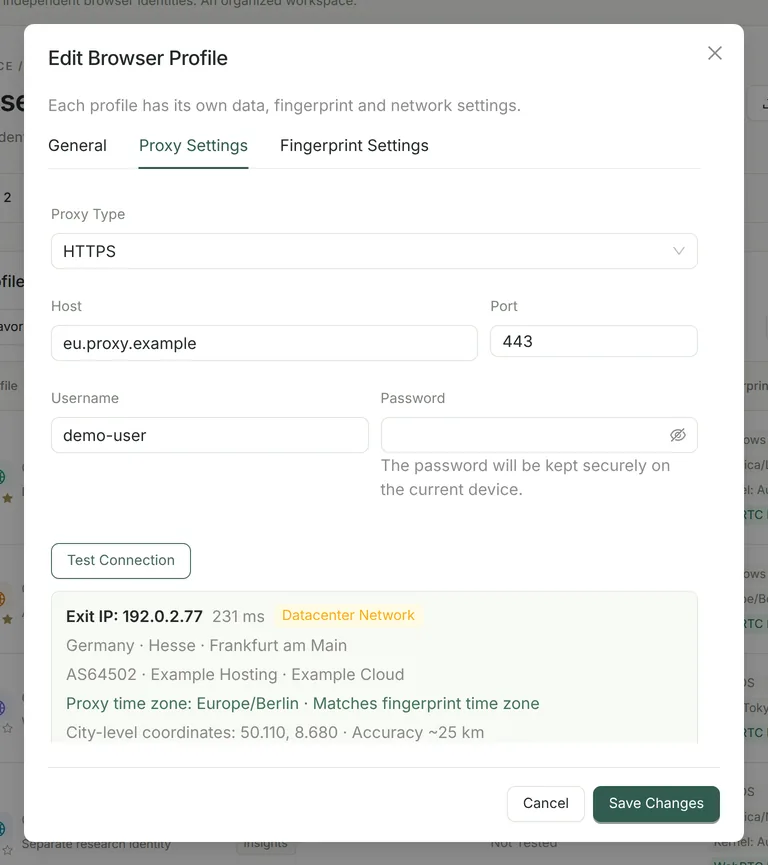
Click “Test Connection” in “Proxy Settings”, or test in bulk from the profile list. Through that proxy, Prism queries ipwho.is and ipapi.co at the same time and cross-checks the exit IP, country and time zone; if both sources are unavailable, it falls back to api.ipify.org to confirm only the exit IP and shows that location data is unavailable.
| Field | Description |
|---|---|
| Exit IP and IP version | The public address websites see, IPv4 or IPv6. |
| Country, region, city and coordinates | City-level coordinates, accurate to about 25 km, used for geolocation matching. |
| ASN, organization, ISP | Helps tell whether the connection is home broadband, a carrier network or a data center. |
| Risk flags | Tor exit, VPN network, proxy network, datacenter network; shown only when the data source returns these fields. |
| Latency | The time taken by this test request, not a ping. |
| Proxy time zone match | Compared with the profile’s fingerprint time zone: matching, not matching or conflicting sources, with an “Apply Proxy Time Zone” button. |
- Each request times out after 12 seconds; authentication failures are not retried, and temporary failures such as timeouts are retried once automatically.
- Bulk tests from the list cover up to 100 profiles at a time, 5 in parallel, and the results are saved with each profile; results older than 24 hours are marked as outdated, and changing the proxy clears the old result.
- Test requests do not include the profile name, proxy credentials or browsing data.
Network identity: follow the proxy exit
New profiles use “Follow Proxy Exit” by default: before every launch, Prism tests the proxy and sets the language, Accept-Language, time zone and geolocation to match the exit in one atomic step. The language is matched to the exit country automatically for 24 countries / regions, including the US, the UK, Japan, Germany, France, South Korea, Singapore and Brazil; for other countries, the manual values are kept.
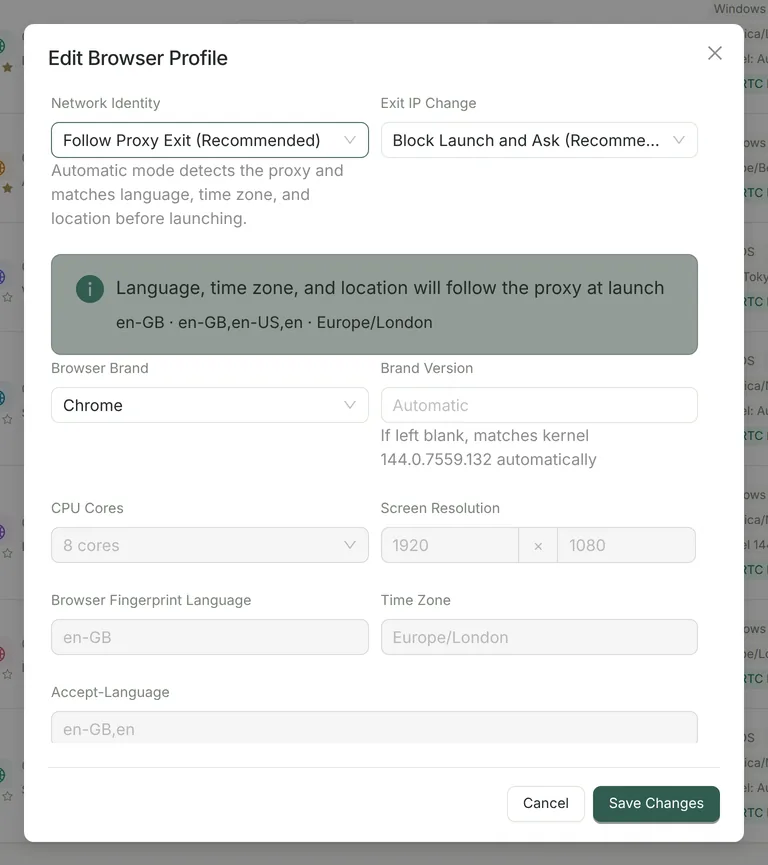
- If the two geolocation sources disagree on the country or time zone, the launch pauses with a “Proxy Region Conflict” prompt, and you decide whether to continue.
- If the location data is incomplete, the launch is refused so that a wrong time zone is never silently bound to the profile.
- For accounts already in long-term use, you can choose “Set Manually” to keep the existing language and time zone.
- Without a proxy (direct connection), a new profile’s language, Accept-Language and time zone match this computer’s system settings by default.
Exit IP changes: block the launch, or only warn
“Exit IP Change” defaults to “Block Launch and Ask (Recommended)”. Profiles that use a proxy re-check the exit at every launch: if the exit IP differs from last time, Prism stops and asks you to confirm first.
- While a profile is running, its exit is re-checked every 5 minutes.
- Under the “Block” policy, an exit change or a failed re-check isolates the profile: its proxy relay is closed and the browser loses network access instead of falling back to your local network.
- Three consecutive proxy relay failures within 60 seconds, or a single authentication failure, trigger a warning or isolation; the warning clears automatically once traffic resumes.
- With “Warn Only and Continue”, Prism only warns and does not block the launch.
WebRTC and DNS leak protection
| Policy | Effect |
|---|---|
| Leak Protection (Recommended, default) | Blocks non-proxied UDP, so WebRTC cannot bypass the proxy and expose your local addresses. |
| Public Interface Only | Hides local network adapter addresses but may expose your real public IP. |
| System Default | Uses all network interfaces; marked as high risk in the app and meant only for troubleshooting site compatibility. |
When a proxy is used, domain names are resolved through the proxy to avoid local DNS bypass, and QUIC, DNS prefetching and hyperlink auditing pings are turned off. Only localhost / 127.0.0.1 bypasses the proxy.
Set up a proxy for a profile
Open the profile editor
Choose “Edit” from the “⋯” menu in the profile list, or create a new profile; a profile must be closed before you can edit it.
Enter the proxy details
In “Proxy Settings”, choose HTTP, HTTPS or SOCKS5 and enter the host, port, username and password.
Test the connection
Click “Test Connection” and check the exit IP, country and city, ASN and risk flags.
Confirm the time zone and network identity
In “Fingerprint Settings”, keep “Follow Proxy Exit”, or click “Apply Proxy Time Zone” if the time zones do not match.
Save and open
After saving, click “Open”. The exit is tested once more before launch; use “Launch Diagnostics” for troubleshooting.
Launch diagnostics: check before opening
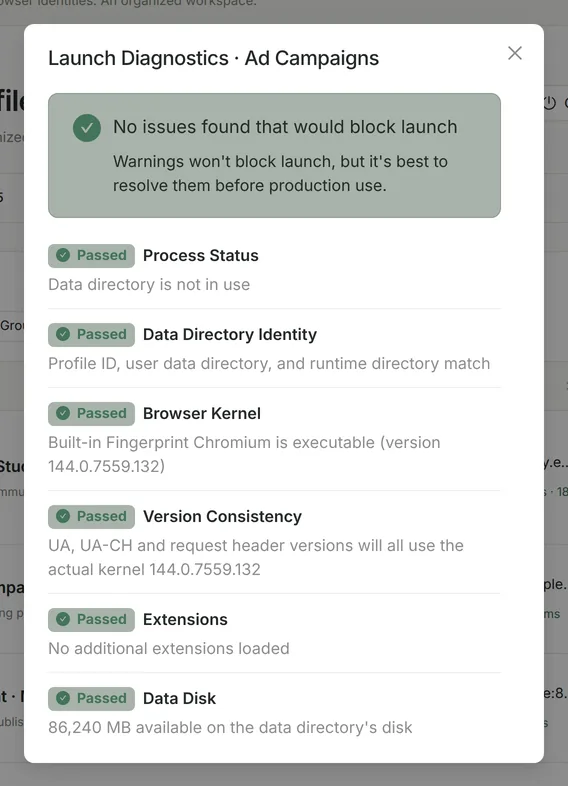
“Launch Diagnostics” in the profile menu runs read-only checks without starting the browser. It covers up to 15 items: process status, data directory identity, browser kernel, version consistency, browser extensions, data disk, proxy network, exit IP stability, time zone consistency, geographic identity, WebRTC, DNS routing, IPv6 routing, hardware consistency and rendering strategy, each marked “Passed / Warning / Failed”. Exit IP stability, time zone and geographic identity appear once the proxy has been tested, and DNS and IPv6 routing apply only to profiles with a proxy; the WebRTC, DNS and IPv6 checks judge the current configuration and do not run actual leak tests.
FAQ
- Does Prism provide proxy IPs?
- No. Prism configures, tests and isolates the proxy for each profile; you choose your own proxy service.
- Two profiles have the same exit IP. Does that mean they are not isolated?
- Data isolation and the network exit are separate things. If both profiles connect directly or use the same proxy, their exit IP will be the same; for different exits, give each profile a different proxy.
- What should I do if the test result shows “Datacenter Network”?
- It means the data source considers the IP to belong to a data center. Whether that matters depends on the target website; for account work, residential or carrier connections with a better reputation are usually recommended.
- Time zones do not match?
- After testing in “Proxy Settings”, click “Apply Proxy Time Zone”, or set the network identity to “Follow Proxy Exit”.
- The test fails, but the proxy works in other software?
- Check that you chose the right protocol (HTTP and SOCKS5 are not interchangeable), the port and credentials, and whether the proxy restricts source IPs. Authentication failures are not retried automatically.