
Four methods compared
| Method | Where to find it | Included | Excludes / notes |
|---|---|---|---|
| Config file (*.prism-profile.json) | Profile menu → Export Configuration; Import Profile → Import Single Profile (JSON) | Proxy address, fingerprint seed and other profile settings | No proxy password, browser data or extensions; re-enter the proxy password after import |
| Cookie import/export (JSON) | Profile Data → Import Cookies / Export Cookies | All cookies of the profile, for every domain | The file is unencrypted and contains login credentials |
| Full backup (folder) | Profile Data → Export Backup Directory; Import Profile → Import Full Data Backup | Complete browser data (cookies, LocalStorage, IndexedDB, history, extension data and more) + configuration without passwords + SHA-256 checksum manifest | No proxy password or extension files; the backup folder is unencrypted |
| Workspace migration package (.prism-migration) | Download icon in the header → Export all profiles as a migration package; Import Profile → Import Migration Package | Configuration and favorites of all profiles, proxy details (including passwords), complete browser data and referenced local extensions | Encrypted with a migration password; close all profiles before export and import |
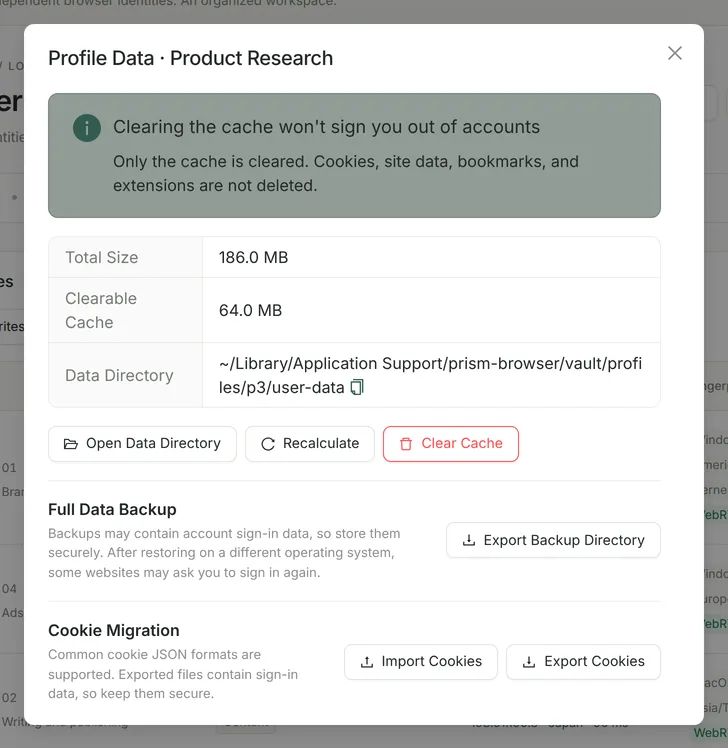
Cookie import and export
- Format: JSON. Supports files exported by Prism and JSON arrays exported by common cookie extensions (fields such as expirationDate, session and sameSite are supported).
- Limits: up to 10 MB and 10,000 cookies per file; each cookie needs a domain or an http(s) url, and SameSite=None must also be Secure.
- How it works: while the profile is closed, Prism uses the profile’s kernel to start a temporary headless session in the background that listens only on 127.0.0.1, reads and writes cookies through the browser’s interface, and then exits normally; the encrypted cookie database is never modified directly.
- Importing adds cookies without clearing existing ones; session cookies without an expiry date become valid for 30 days after import, so they still work the next time you open the profile.
- The Netscape cookies.txt format is not supported yet, and the partition information of CHIPS partitioned cookies is not migrated.
Full data backup and restore
- The profile must be closed first. The backup is written to a temporary folder and renamed atomically when finished, so no incomplete backup is left behind.
- The backup computes an overall SHA-256 hash over the files’ relative paths, sizes and contents. On import it is recalculated and verified, and the import is refused if any file has been modified.
- Import always creates a new profile named “original name (migrated)” and never overwrites an existing profile; failures are rolled back automatically.
- Symbolic links and special runtime files are not copied; a single backup can hold up to 1 million files and 500 GB.
Want to confirm that a backup works first? Follow the hands-on tutorial on profile isolation and backup recovery: write different markers in two profiles, then export and restore them.
Switching computers: the encrypted migration package for all profiles
Export on the old computer
Close all profiles, click the download icon in the header (“Export all profiles as a migration package”), then set a migration password of at least 10 characters and confirm it.
Install on the new computer and handle the license first
Install Prism. If any profile is pinned to a kernel version, click “Deactivate This Device” on the old device, activate Pro on the new device, and only then import.
Import and check
Choose “Import Profile → Import Migration Package” and enter the migration password. For profiles whose names already exist, you can keep both (the imported one is renamed) or skip them. After importing, open your important profiles one by one and check their login state.
- Encryption: a key is derived from the migration password with scrypt and used for AES-256-GCM encryption, plus an integrity check. Prism does not store the migration password, so a forgotten password cannot be recovered.
- A single migration package can hold up to 500 profiles, 1 million files and 500 GB; importing never overwrites existing profiles, and any failure rolls back the whole import.
- If any profile in a migration package or full backup is pinned to a kernel version (including 144), a device without an active Pro license refuses the import and the whole migration package is rolled back. Activate Pro on the new device first, or switch those profiles to “Auto (match the app kernel)” before exporting.
Limits of cross-system migration
Clear the cache, keep your logins
“Clear Cache” in “Profile Data” deletes only caches that can be regenerated (Cache, Code Cache, GPU cache, Service Worker cache and so on); it does not delete cookies, site data, bookmarks or extensions, so account logins are not affected. The profile must be closed first.
FAQ
- Just want to move one account’s login state to another profile?
- Use “Export Cookies”, then “Import Cookies”. Remember that a cookie file is equivalent to login credentials, so delete it promptly after the transfer.
- Full backup or migration package: which should I choose?
- Use a full backup to archive a single profile or copy it to another computer; use the encrypted migration package to move a whole workspace to a new computer, since it encrypts and packages the proxy passwords and local extensions too.
- Can I store backups in cloud storage?
- Full backup folders and cookie files are unencrypted and may contain login information, so keep them only in trusted locations; when transferring over a network, prefer the encrypted migration package.