
Operations workflows
In dedicated work profiles, let AI read web pages you are authorized to access and organize the information. Confirm the goal and expected output first, then gradually move on to tasks that involve clicking and filling in forms.
Development and testing
Let AI read page state, perform interactions and help reproduce issues in designated test profiles. Prism manages each profile’s login state, proxy and fingerprint settings.
Start with a test profile
Check Pro and the app version
First install Prism and make sure Pro is activated. The macOS and Windows apps both include “Local AI · MCP”.
Authorize only the profiles you need
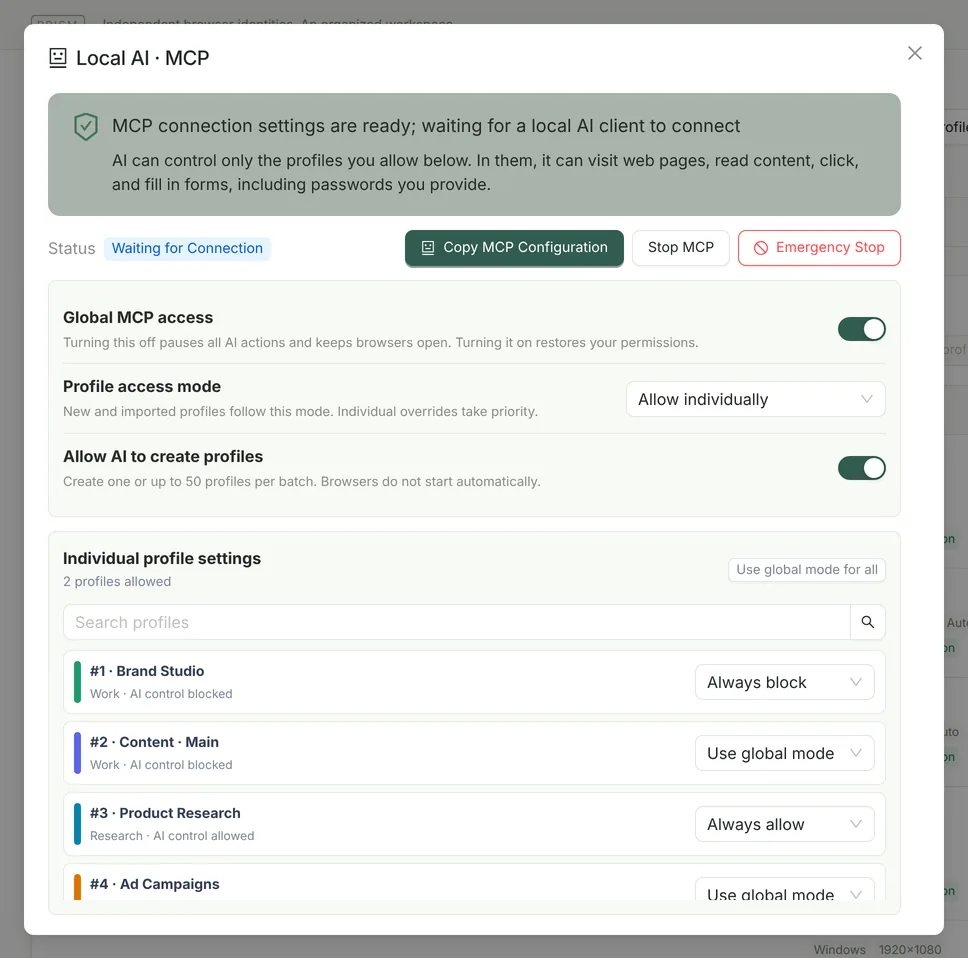
Open “Local AI · MCP” and make sure “Global MCP access” is on. “Profile access mode” defaults to “Allow individually”: under “Individual profile settings”, set the profiles you want to hand to AI to “Always allow” and leave the others on “Use global mode”, which means not allowed. Start with a separate test profile that holds no important accounts.
Enable MCP and copy the actual configuration
Click “Enable MCP”, then copy the MCP configuration shown in the app. Use that configuration, because the path can differ depending on the installation folder and platform.
Connect an MCP-capable AI client
Add the configuration to the AI client’s MCP server settings, then restart or reconnect as the client instructs. Make sure the Prism tools are visible, then start a read-only test task.
Check the results before you continue
First have AI read the title and content of a test page you specify, and confirm that it did not act on any profile you have not authorized. When a task needs clicking, filling in or submitting, state clearly what it is allowed to do.
Access modes: one by one, or all profiles
| Setting | What it does |
|---|---|
| Global MCP access | Turning it off pauses all AI actions: running page tasks are interrupted, AI can no longer use any profile or create profiles, and browser windows stay open. Turning it back on restores your previous settings. |
| Profile access mode | “Allow individually” (default): only profiles set to “Always allow” are visible to AI. “All profiles, including new ones”: existing profiles and any you later create, duplicate or import are allowed automatically, except those set to “Always block”. |
| Individual profile settings | Each profile can be set to “Use global mode”, “Always allow” or “Always block”; an individual setting takes priority over the access mode. “Use global mode for all” clears every individual setting at once. |
| Allow AI to create profiles | Off by default. When it is on, AI can create profiles one at a time or in batches. Creating a profile does not grant control of it: whether AI can use a new profile still depends on the access mode. |
- After an upgrade from 0.3.19, the access mode is “Allow individually” and every profile keeps its previous permission; access is never widened automatically.
- When a profile moves to the Trash, its “Always allow” setting is cleared and an “Always block” setting is kept, so restoring it from the Trash never re-authorizes it by accident.
- These settings can only be changed in the Prism app; MCP has no tool for changing permissions.
Let AI create profiles
With “Allow AI to create profiles” on, AI can create one profile with prism_create_profile or 1–50 at a time with prism_create_profiles. It can set the name, group, tags, note, proxy, startup pages, hardware template and fingerprint options, installed extensions and a pinned kernel version — the same fields as the local API’s creation endpoints.
- The whole batch is validated first, and nothing is created if any profile is invalid; new profiles are saved closed, and no browser opens.
- To let AI use the profiles it creates right away, set the access mode to “All profiles, including new ones”. With “Allow individually”, AI can use a new profile only after you set it to “Always allow”.
- Every creation carries a request key; Prism generates one when the AI does not provide it. If a request times out or the connection drops and the outcome is unknown, retry with the same key returned in the error — nothing is created twice within 24 hours.
What it can do: 58 MCP tools
| Group | Key tools | What they do |
|---|---|---|
| Service and connection | prism_health, prism_start_service | Check the local service, open Prism if needed and wait until it is ready |
| Profiles and task sessions | prism_list_profiles, prism_start_profile, prism_create_task_session | List authorized profiles and launch or close them; each task uses its own page session, so multiple AI tasks do not interfere with each other |
| Create profiles | prism_create_profile, prism_create_profiles | Create profiles one at a time or in batches of up to 50; requires “Allow AI to create profiles” |
| Navigation and pages | prism_open_page, prism_list_pages, prism_wait_for_page | Open URLs, go back and forward, switch tabs, and select pages opened by extensions (such as wallet confirmation windows) |
| Reading | prism_read_page, prism_get_text, prism_get_markdown, prism_get_element_rect, prism_take_screenshot | Paginated accessibility snapshots (with the positions of actionable elements), text, Markdown, tables and lists, element attributes and coordinates, viewport or full-page screenshots |
| Interaction | prism_click_element, prism_click_and_hold, prism_drag, prism_type_text, prism_set_input_files | Click, press and hold (mouse or touch, 100–15,000 ms), drag, hover, type, press keys and shortcuts (optionally held down), choose options, check boxes, upload local files, handle dialogs |
| Waiting | prism_wait_for_stable, prism_wait_for_text, prism_wait_for_download | Wait for the page to settle, for elements or text to appear, for the URL to change or for downloads to finish |
| Network | prism_list_network_requests, prism_start_har | View this task’s network requests (auth headers and cookies redacted), record HAR files and simulate going offline |
MCP has no tools for reading cookies, proxy credentials or extension storage, and it cannot run arbitrary JavaScript or raw debugging commands; only http / https URLs are allowed. Before pressing and holding or dragging an element reference, Prism checks that the target is not covered and lies within the visible area; otherwise nothing is pressed.
Using WorkBuddy? Start here
The hands-on tutorial on connecting WorkBuddy to Prism MCP covers where to find the client settings, a configuration example, the page-reading results and how to revoke access. The connection worked, but the tutorial also records a limitation: the AI client modified its skill notes without being asked.
A task that starts read-only
“In the test profile I have authorized, open the web page I provide, read only the title and main content, and summarize them in three bullet points. Do not click buttons or fill in or submit forms yet.”
Once you have confirmed that the connection and the profile are correct, adapt the task to your real workflow. MCP is how an AI client connects to Prism; it does not provide a model service or subscription for you.
Configuration example: the app shows the actual path
Below is the shape of a stdio configuration for the default macOS installation location. Use “Copy MCP Configuration” in the app whenever possible, and do not reuse an installation path from another computer.
{
  "mcpServers": {
    "prism": {
      "command": "/Applications/Prism Browser.app/Contents/Resources/pro-agent/prism-pro-agent",
      "args": [
        "--mcp"
      ]
    }
  }
}
On Windows, use resources\pro-agent\prism-pro-agent.exe in the installation folder. If the configuration provided by the app differs, use what the current version of the app generates. You only need to save it once; Prism reconnects automatically after it restarts.
Take back control at any time
- Pause all AI actions
- Turn off “Global MCP access”. Running page tasks stop immediately, AI can no longer use any profile or create profiles, and browser windows stay open; turning it back on restores your previous settings.
- Revoke access for one profile
- Under “Individual profile settings”, set the profile to “Always block”; with “Allow individually”, switching it back to “Use global mode” also works. After that, any access to the profile returns “This profile does not yet allow local AI control”.
- Stop MCP
- In the “Local AI · MCP” window, choose “Stop MCP” to disconnect the current MCP control.
- Emergency Stop
- Releases all task sessions and closes the profiles that MCP started or controlled in this session; the shared local automation API stops too. Even after global access is turned off, Emergency Stop stays available while any such profile remains. Check for running tasks before you confirm.
Limits and auditing
- Only a local stdio MCP server is provided; there is no remote access over HTTP / SSE.
- The local bridge accepts up to 120 requests per minute, and each request times out after 60 seconds; typed text is limited to 4,000 characters per action.
- Uploads take 1–20 files at a time, given as absolute local paths outside sensitive folders, up to 100 MB each and 250 MB in total.
- The audit log is stored locally and records only actions, results and profiles, not typed text or page content.
Local connection and model data boundaries
Prism uses a local stdio MCP connection. Profile data is stored on your computer by default, but web content read by AI enters the workflow of your AI client; whether it is sent to a remote model depends on that client and the model service. AI can read values already entered in forms in authorized profiles, including passwords you provide, so choose a suitable test profile before connecting.
Read the full data and privacy statement · See Pro features and pricing