
Set up your workspace in six steps
Download and open Prism
Download the official Community installer and install it following the steps for your platform. The app includes the Chromium 144 fingerprint kernel, so there is nothing to compile.
Create a profile with a clear purpose
Click “New Profile” and name it after the project, the account’s purpose or what you are testing, for example “Brand content workspace” or “English site compatibility test”. Create a separate profile for each purpose and organize them with groups and tags.
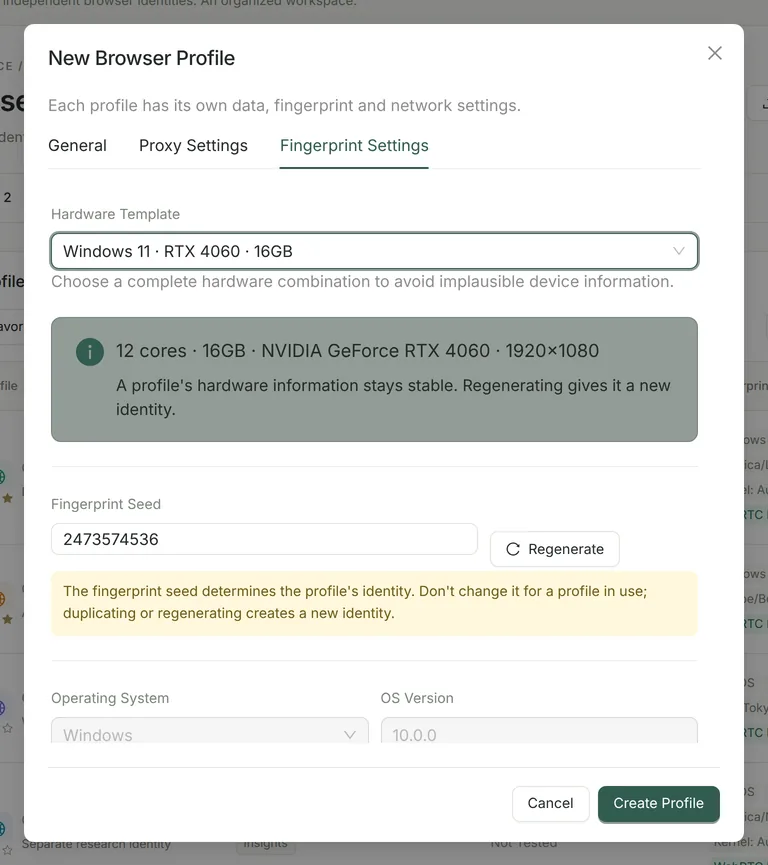
Choose a hardware template
In “Fingerprint Settings”, choose a complete hardware template. For multiple profiles, a “Seed-Based” template is recommended: each profile’s GPU and other details are fixed by its fingerprint seed. Do not change the template or seed of a long-term profile without a reason. See fingerprint settings for details.
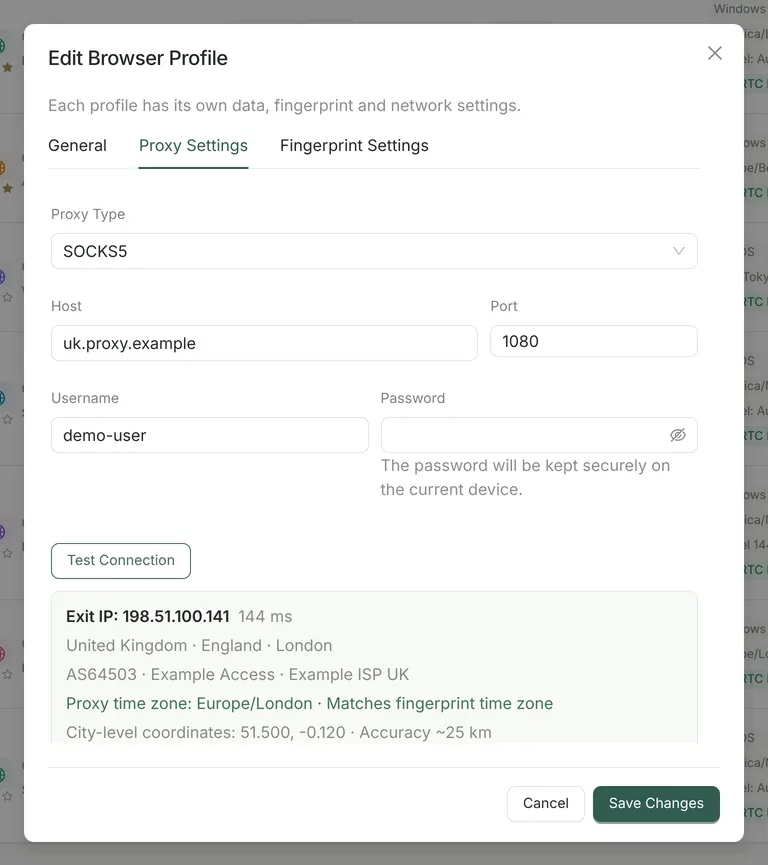
Connect directly or use your own proxy
If you do not need a proxy, keep “No Proxy (Local Network)”. If you do, enter the HTTP, HTTPS or SOCKS5 host, port and credentials in “Proxy Settings”, click “Test Connection” and confirm the exit IP, location and time zone. See proxies and network identity for details.
Save, open and verify isolation
Save the profile, click “Open” and visit the website you need. Each profile uses its own data directory. With a test account you control, check that the login state in one profile is independent of another; then close and reopen the profile to check that the login persists.
Organize and back up
Separate projects with groups, tags and favorites. To switch computers or keep an archive, use a full data backup or an encrypted migration package. Close the profiles before backing up, verify the result on the target device first, and only then decide whether to clean up the old one.
Verify it with a hands-on tutorial
Data isolation and backup recovery for two profiles: a hands-on macOS tutorial includes real screenshots, a downloadable test page, expected results and what to do if a step fails. It was tested with Prism 0.3.16; Windows and cross-system recovery were not tested.
Two ways of working, one foundation
Multi-account operations: one purpose, one profile
Give each account you are authorized to manage a clearly named profile with its own storage and matching proxy. Use groups, tags and window numbers to reduce mistakes, and do not treat profile isolation as a guarantee that a platform will not restrict accounts. For more ways to stay organized, see bulk management.
Developers: keep test contexts in profiles
Prepare profiles for different languages, time zones or login states, and record the OS, app and kernel versions. Reproduce issues with consistent steps; add Pro’s local API or MCP when you need programmatic control.
Having trouble? Check these first
- Proxy test fails
- Check the protocol, host, port, credentials and whether the proxy service is available. The proxy route and your local network can also affect the connection. Authentication failures are not retried automatically; temporary failures such as timeouts are retried once.
- Two profiles have the same exit IP
- Separate data directories do not change the network exit. Profiles on the same direct connection or the same proxy may share an exit IP; configure them separately as needed.
- Websites ask you to sign in again after migration
- Some website data is encrypted with macOS Keychain or Windows DPAPI and cannot be decrypted directly on another operating system. Keep your backup and sign in again in the target profile.
- A fingerprint test page shows red
- Record the specific failing fields, test time, OS and kernel version. Test rules, proxy reputation, fonts and the actual hardware can all affect the result, so a single color cannot tell you whether a profile is usable. See how to test browser fingerprints.
- Not sure what is wrong before opening a profile
- Choose “Launch Diagnostics” from the profile menu. It runs up to 15 read-only checks, including running processes, kernel, proxy, time zone and WebRTC, without starting the browser.
Add automation when you are ready
Everyday profile management stays free. The multi-window synchronizer, local API and scheduled tasks and MCP are part of Pro; the edition comparison shows what each license covers.
To send feedback, use the project’s GitHub Issues and include the version, platform, steps to reproduce and redacted screenshots.