
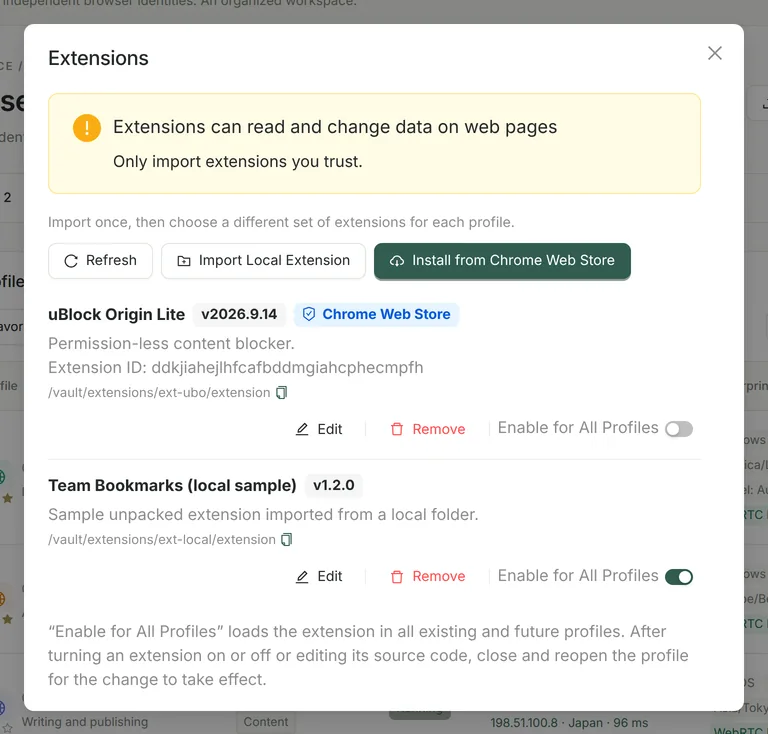
Install from the Chrome Web Store
Copy the extension URL
Open the extension’s page in the Chrome Web Store and copy its URL, which looks like https://chromewebstore.google.com/detail/name/32-character-extension-ID.
Choose the download network
Click “Install from Chrome Web Store”, paste the URL and choose how to download it: a direct connection from this computer, the system proxy, or the proxy of a profile that has one configured.
Download and install
Prism downloads the CRX3 package from Google’s official update URL, verifies the signature and extension ID, safely unpacks it and adds it to the extension library; the installed extension keeps the same ID as the store version.
- Entering only an extension ID, using old chrome.google.com/webstore URLs and importing .crx files directly are not supported at the moment.
- Extensions are not updated automatically: to get a new version, remove the extension from your profiles and delete it, then install it again from the store.
- The same store extension is never imported twice.
Import an unpacked local extension
Select an extension folder that contains manifest.json to import it. Prism checks the manifest format (Manifest V2 / V3), name and version, and that the folder is no larger than 200 MB and 20,000 files and contains no symbolic links, then copies it into its own extension library. Manifest V3 extensions are recommended; whether a Manifest V2 extension runs depends on the kernel version.
Choose per profile or enable for all
- In the profile editor, go to “General” → “Startup Extensions” to choose which extensions the profile loads (up to 50 per profile).
- Turn on “Enable for All Profiles” for an extension to load it in every existing and new profile.
- Changes to the enabled state or the extension files take effect after the profile restarts.
- Extension data is stored in each profile’s own data directory: the same extension has separate logins and settings in different profiles.
Security note
Using extensions with MCP
Pro’s MCP can list and switch to extension pages, such as a wallet extension’s confirmation pop-up, so the AI can read and click them in profiles you allow. See AI × MCP.