
1. Prepare a test page with fictitious data only
First install Prism. The test page only writes A/B markers; it needs no business account and loads no external resources. Download it and extract it to a separate folder:
Your Mac needs Python 3 installed. In Terminal, type cd (with a trailing space), drag the extracted prism-profile-test folder into the Terminal window and press Return; then run:
python3 -m http.server 4318 --bind 127.0.0.1 --directory fixtureKeep Terminal running; the test address is http://127.0.0.1:4318/. Use this address in every profile, and do not switch to localhost or another port partway through. When you are done, press Control+C in Terminal to stop the server.
2. Create two distinguishable profiles
Create A
Click “New Profile”, name it “Tutorial Test-A” and enter the test address as the startup page. This example keeps a direct connection and pins the kernel to 144.0.7559.132. Save the profile.
Create B
Create “Tutorial Test-B” the same way. Because the two windows have different names, you will not mistake two tabs of the same profile for separate profiles.
Record your own test conditions
Note your OS, the Prism app version and the kernel version the profile is pinned to. The global kernel shown at the top of the manager is not necessarily the one the profile uses; if you do not have the same version, note the difference and double-check the results yourself.
3. Write, switch, then reopen
Save A in profile A
Open A and click “Save test marker A”. Check that both Cookie and localStorage on the page show A.
Check B’s initial state, then save B
When you first open the test page in B, both values should read “Not set”. After you click “Save test marker B”, both should change to B.
Go back to A and refresh
A should still show A/A and must not be overwritten by what you did in B.
Close A, then open it again
Close the whole A profile, open it again and visit the same address; both values should still show A. Closing just a tab is not a substitute for this step.
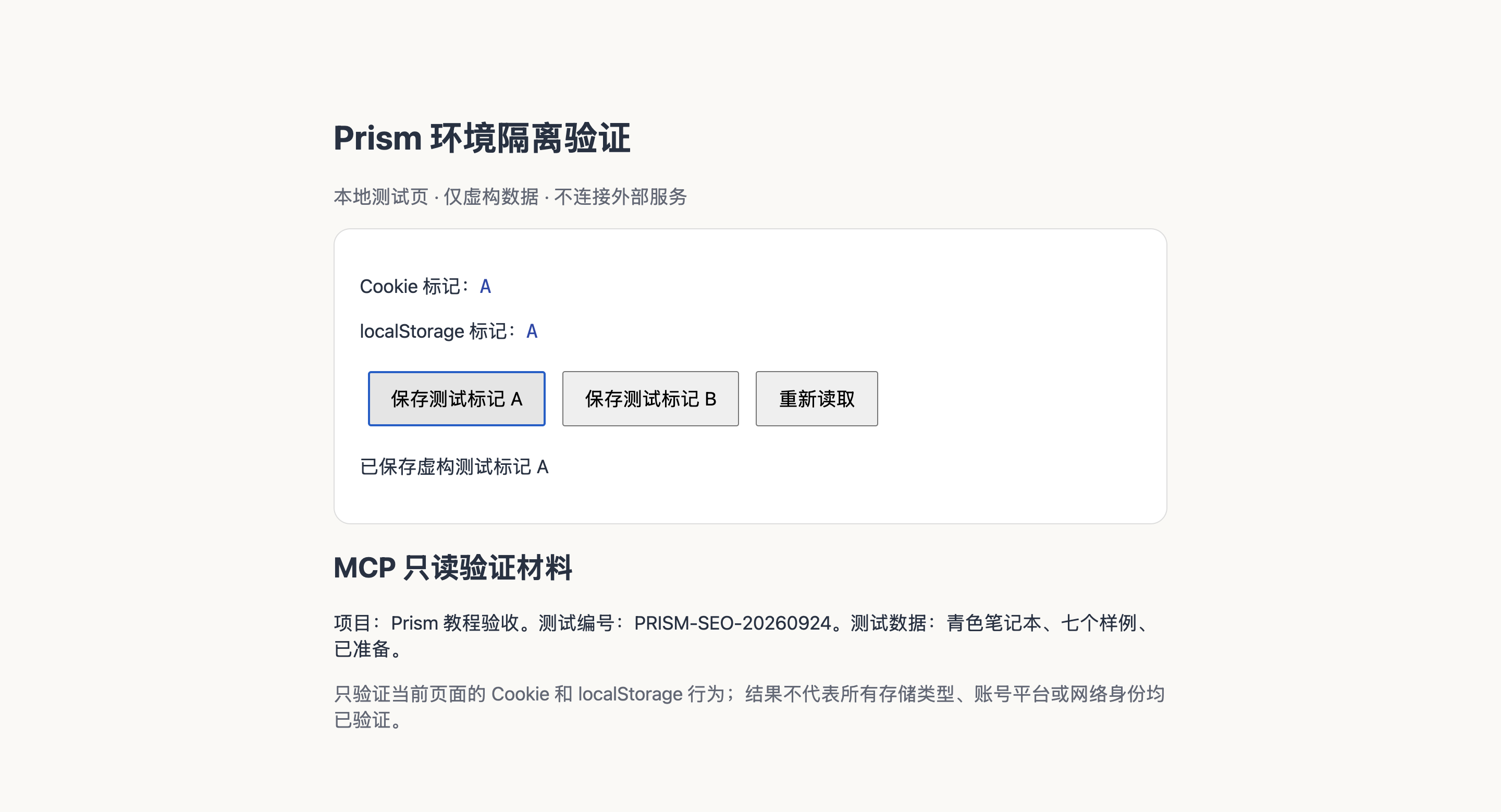
| Check | Observed | Conclusion |
|---|---|---|
| After writing in A | Cookie A · localStorage A | As expected |
| B, first visit | Both “Not set” | As expected |
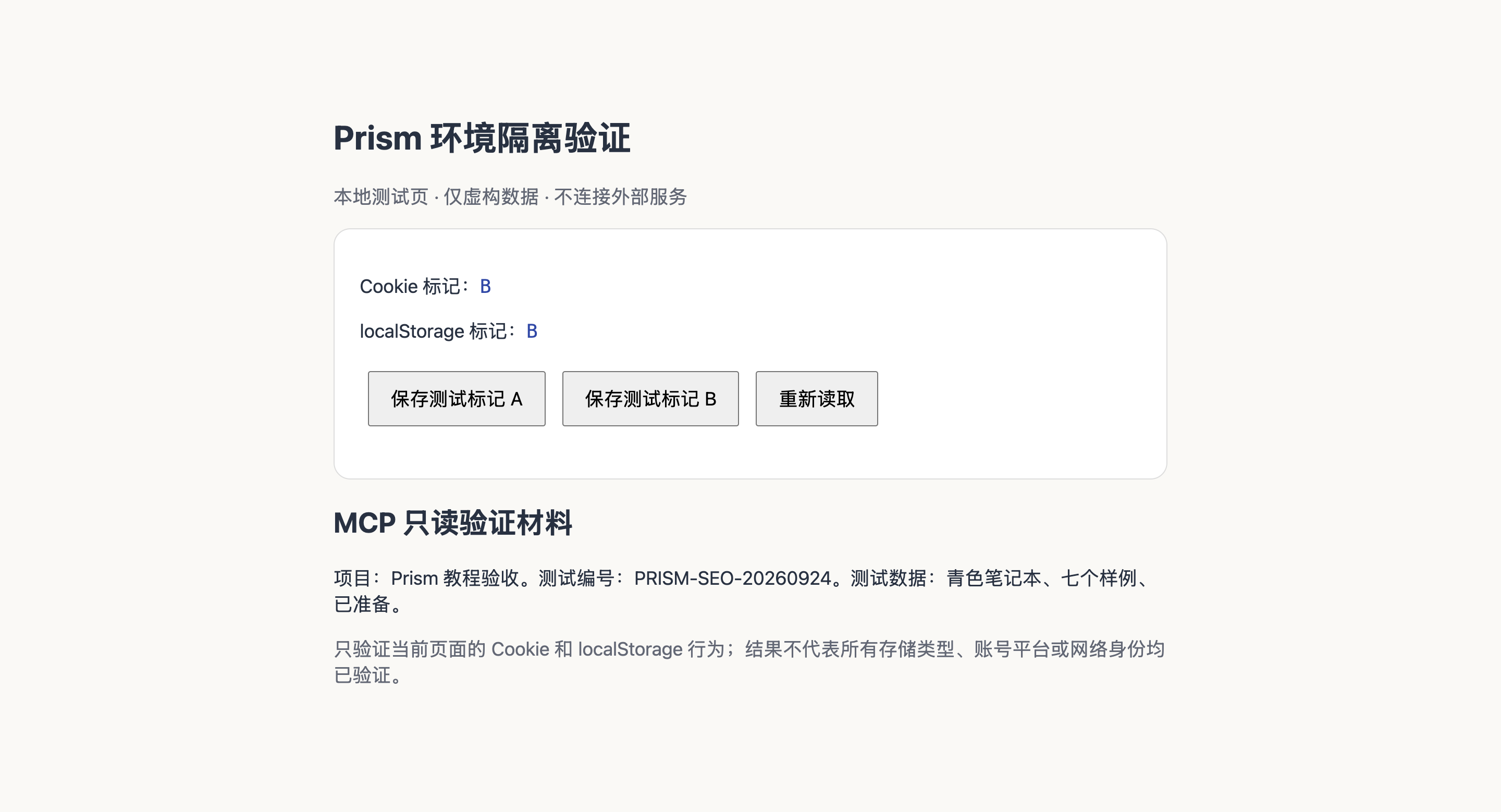
| After writing in B | Cookie B · localStorage B | As expected |
| A after refresh / reopening | Both still A | As expected |
This example verifies isolation and persistence for these two kinds of storage. It does not show that every account platform will accept your logins or that the two profiles have different exit IPs. On the same direct connection, the exit IP may be the same.
4. Export a full backup and restore it to a new profile
Close profile B
Save your work and close B. If an MCP session is using it, first have that task release the session it created.
Find the full backup option
In B’s row, open the More menu → “Profile Data” → “Full Data Backup” → “Export Backup Directory”. Choose a save location you manage and wait for the success message.
Import the backup folder you just created
In the main window, choose “Import Profile” → “Import Full Data Backup” → “Select Backup Directory”. Select the folder level that contains manifest.json and user-data.
Check the new profile and its data
The import creates a new profile whose name ends in “(migrated)”, and the original profile is kept. Open the new profile and visit the same test address; in this example it still shows B/B. Plan the cleanup of your old device only after you confirm the data you need is available.
If something fails, check these first
- The page does not open
- Check that Python 3 is available, the local server is still running and port 4318 is not used by another program. If you change the port, every profile must use the same new address, and you need to start the test over.
- Both A and B show “Not set”
- Make sure you opened the right profile, that the address and port are exactly the same and that you clicked save. First rule out the possibility that you opened a different site address.
- PROFILE_IN_USE when closing
- Release the MCP task session you created first, then close the profile. Do not use a global stop to interrupt unrelated tasks.
- The AI snapshot does not show A/B
- By default, Prism MCP’s compact snapshot filters out single-character text. Use
prism_read_pagewithcompact:false, or read the page’s visible text, before deciding whether anything is missing. - Real websites ask you to sign in after migration
- This example only checks test markers. System encryption, site session rules and platform changes may require you to sign in again, so the B/B result is not proof that every website will keep you signed in.
Next: connect your AI
To have the test page read automatically, continue with the WorkBuddy and Prism MCP hands-on tutorial; if you only need everyday profile management, go back to Getting started. Community vs Pro shows the scope of the automation features.
Sources and corrections
For this article, Codex operated the installed Prism app, called Prism MCP and compiled the actual results; the screenshots were taken during that process. This is a product walkthrough published by the official Prism website, not an independent third-party review, and no untested platform or version is described as passing.
For the product maintainer and contact details, see About Prism. If your results differ, report your OS, Prism and kernel versions, exact steps and redacted screenshots in GitHub Issues; do not attach cookies, activation codes or proxy passwords.